PvP
Hit feedback, combo counter, reach display, totem helper that warns you when your offhand is empty, crystal optimizer, low health warning.
 monchi
Minecraft Bedrock · Windows · free
A PvP client for Bedrock that I've been working on. It's free, it's open source, and you can make pretty much everything look the way you like.
Still in beta and made by just one person, so a few things might break here and there.
What's inside
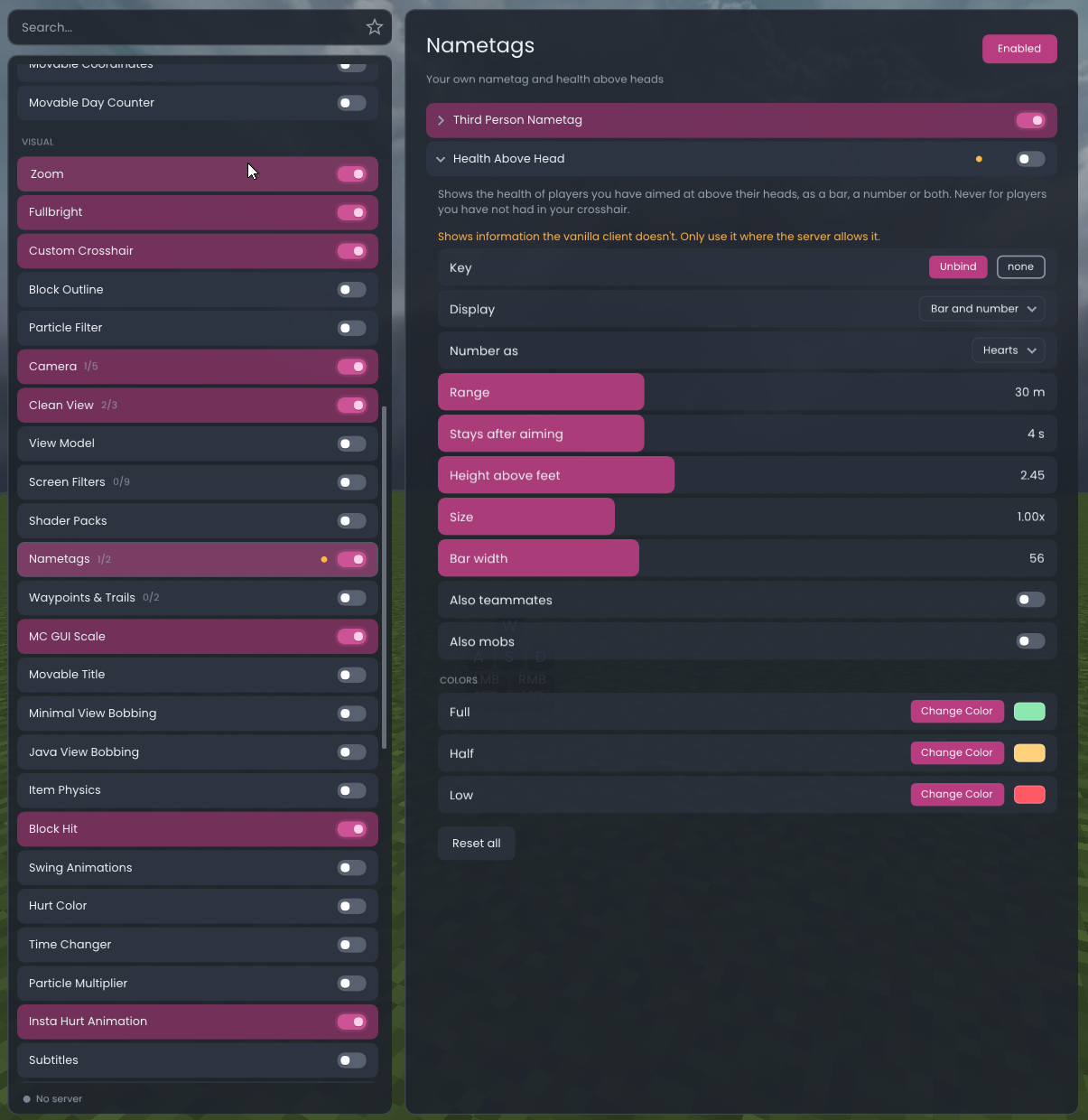
Right Shift opens the menu. On the left you have all the modules sorted into PvP, HUD, visuals and so on, on the right the settings of whatever you clicked. Search works too, and you can pin your favourites.
Every module has its own little settings page. Colors, sizes, keys, when it shows up. If something bugs you, you can probably change it.
Hit feedback, combo counter, reach display, totem helper that warns you when your offhand is empty, crystal optimizer, low health warning.
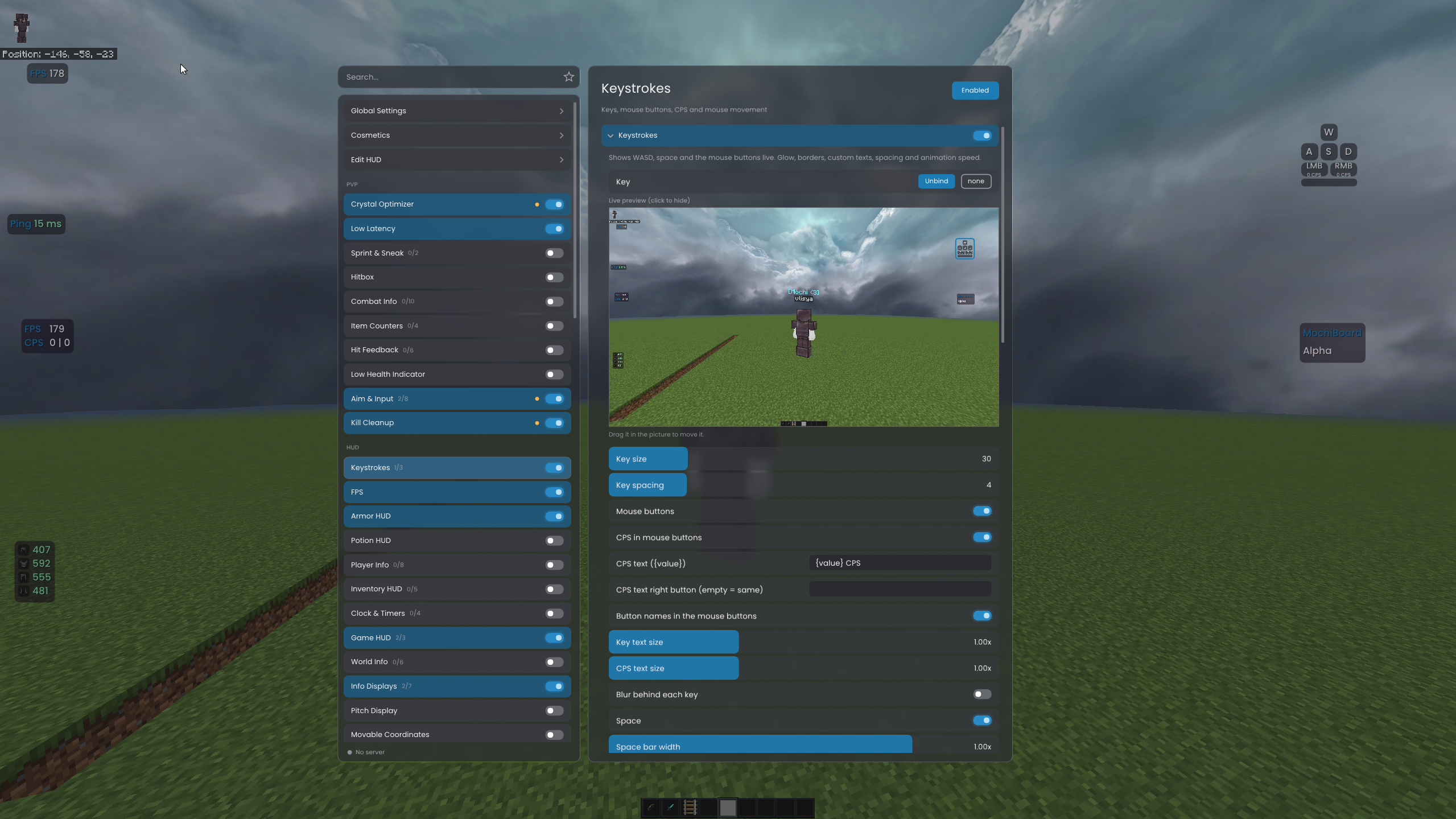
Keystrokes, FPS and CPS, ping, armor, potions, coordinates, inventory viewer. Drag everything wherever you want it in the HUD editor.
Custom crosshair with your own pixel art, zoom, freelook, fullbright, block outline, motion blur, nametags, item size.
FPS boost, a short frame queue for less input delay, a frame limiter and a fix for tearing on G-Sync screens.
Toggle sprint and sneak, inventory lock so you don't drop your sword by accident, server profiles, chat tweaks.
Flappy Heart, Snake and a block game for the queue, a break reminder, music info and Lua scripts.
HUD
Most HUD modules have a live preview right in the menu, so you see what a setting does before you close anything. Keystrokes is my favourite to play with.
Cosmetics
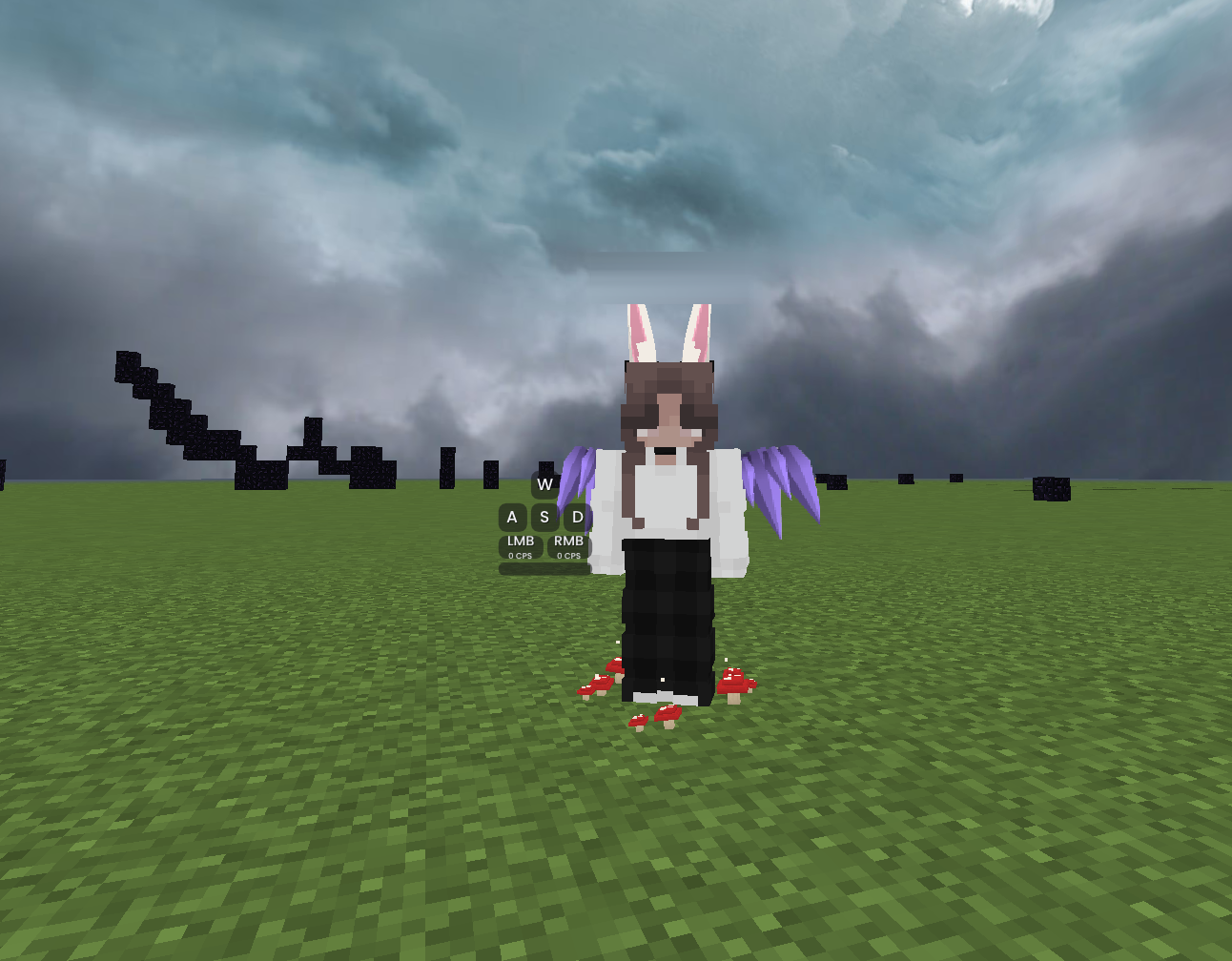
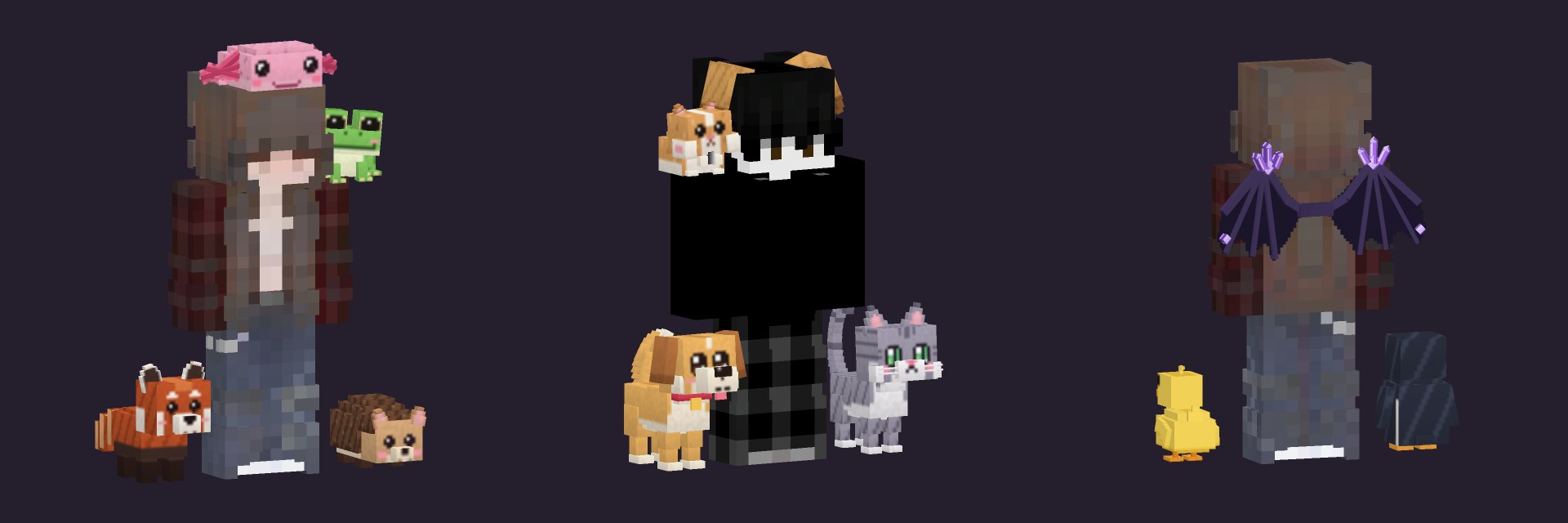
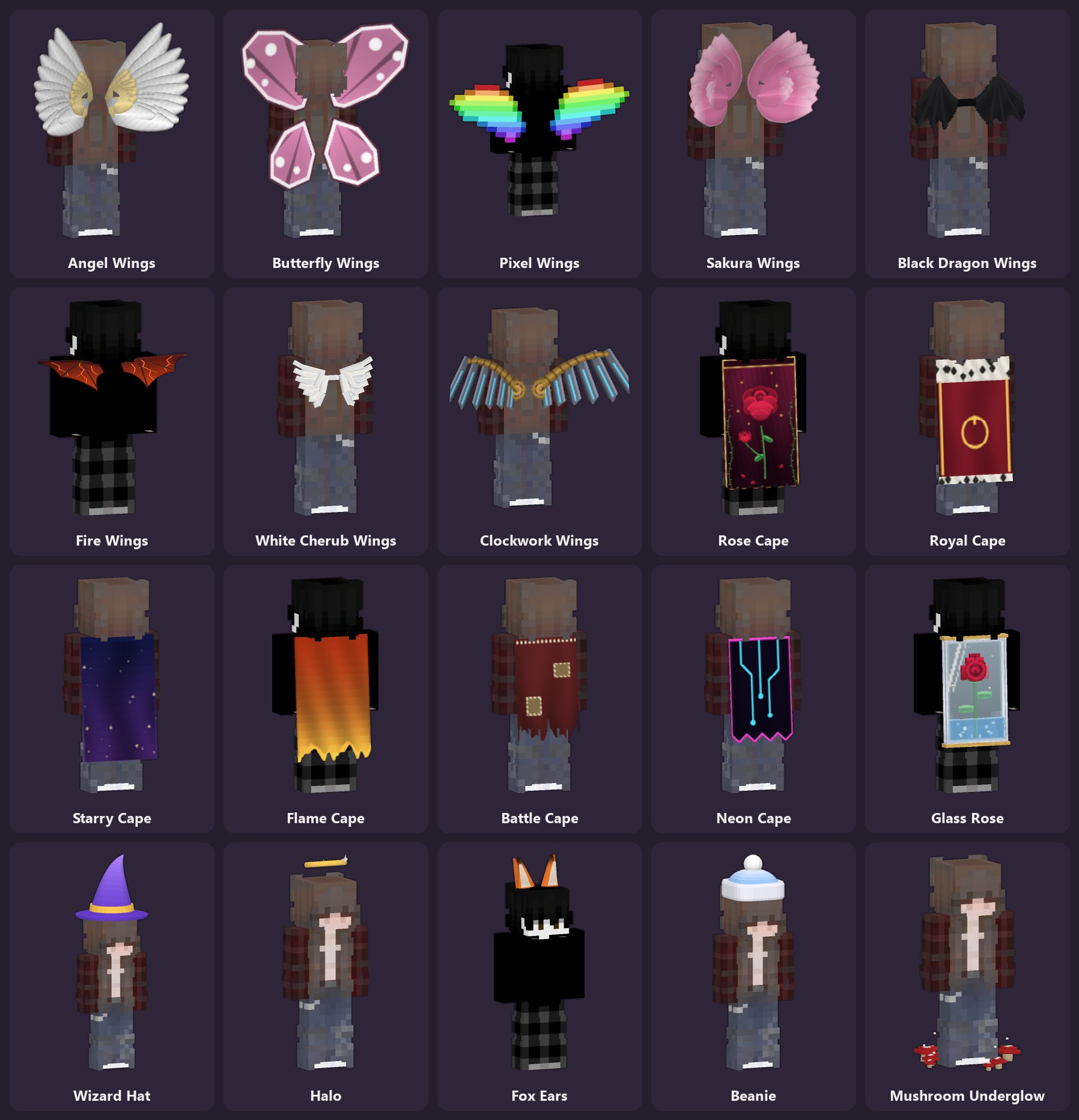
There's a whole wardrobe: wings, capes, ears, tails, shoes, auras and pets. You can change their colors and check them on your skin before you put them on.
Other Monchi players see them too. Everyone else just sees your normal skin.
New in 0.1.5
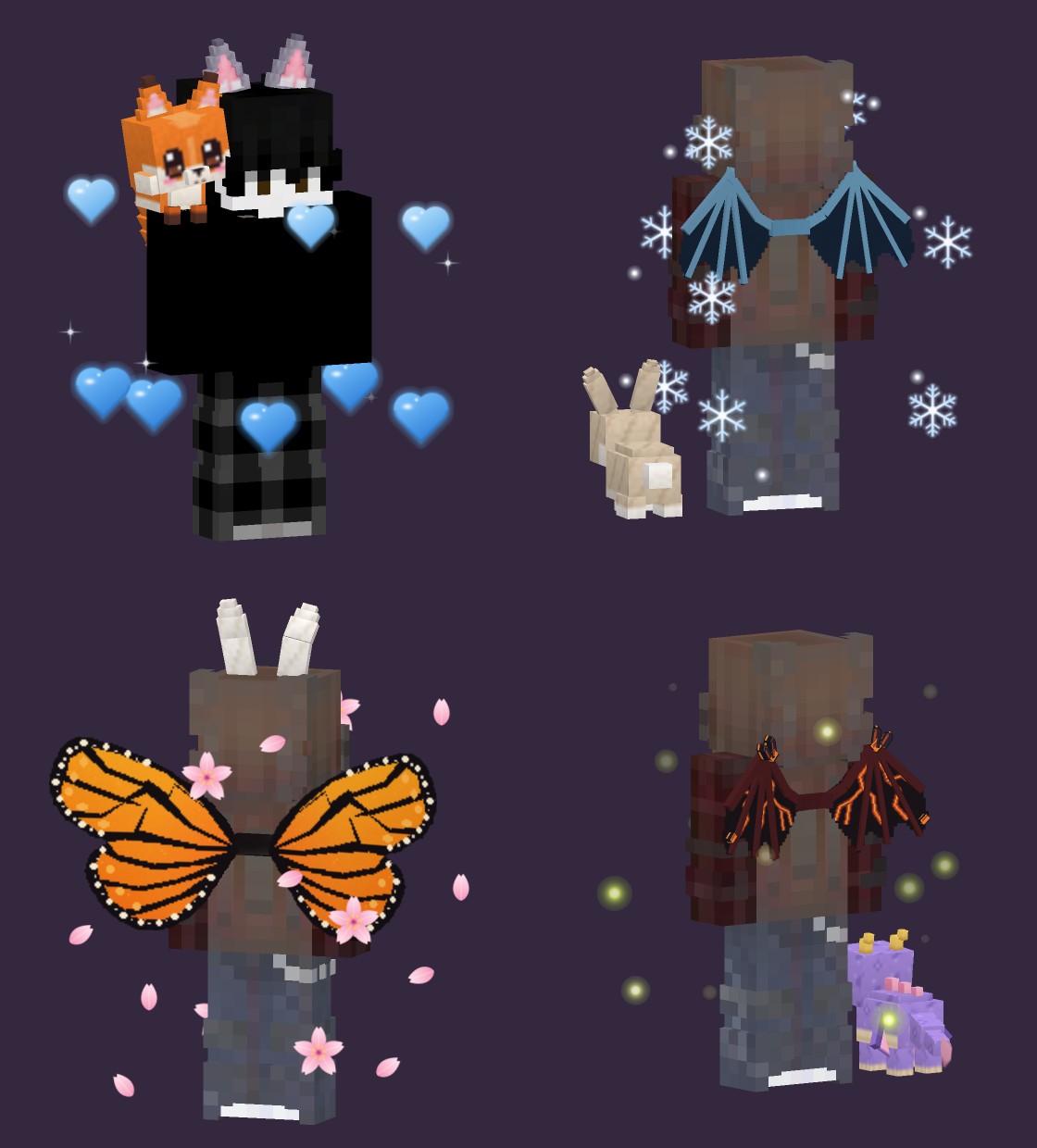
A red panda, a hedgehog, a bunny, a penguin, a duckling, a baby dragon, a cat and a dog now walk next to you. A frog and a hamster sit on your shoulder, and there's an axolotl you can wear as a hat.
Auras float around you: glowing hearts, sakura petals, fireflies and snowfall. On top of that there are 15 new wings, from dragon and frost wings to monarch and mechanical ones.
The wardrobe
Wings, capes, hats, ears, tails, shoes, auras and pets. Here are some of them. In the client you can try every one on your own skin first and change the colors of most.
Launcher
The launcher starts Minecraft with Monchi and keeps itself up to date. It shows your Minecraft version and tells you if Monchi supports it.
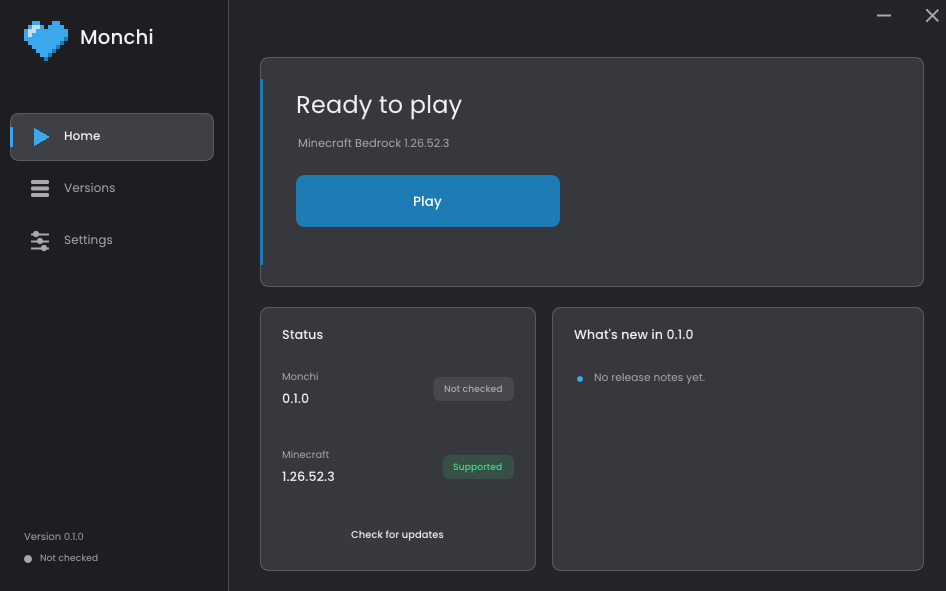
The button gets the newest version straight from GitHub. Start MonchiLauncher.exe, press Play, done.
Download MonchiJust me! Monchi is a one person project that I work on in my free time. That's why updates and fixes sometimes take a bit, and why it's still in beta.
That happens because the launcher isn't signed with a paid certificate yet, not because something was found. Click "More info" and "Run anyway" if you trust it. If you'd rather check first, you can upload the file to VirusTotal or read the code on GitHub.
Monchi only has legit stuff, no reach, no killaura, no autoclicker. Some servers still don't allow certain modules, so those are marked in the menu and some are switched off on those servers automatically. Always check the rules of the server you play on.
Right now 1.26.52 on Windows. Monchi is made by one person, so when Minecraft updates it can take a little while until everything works again. Thanks for being patient!